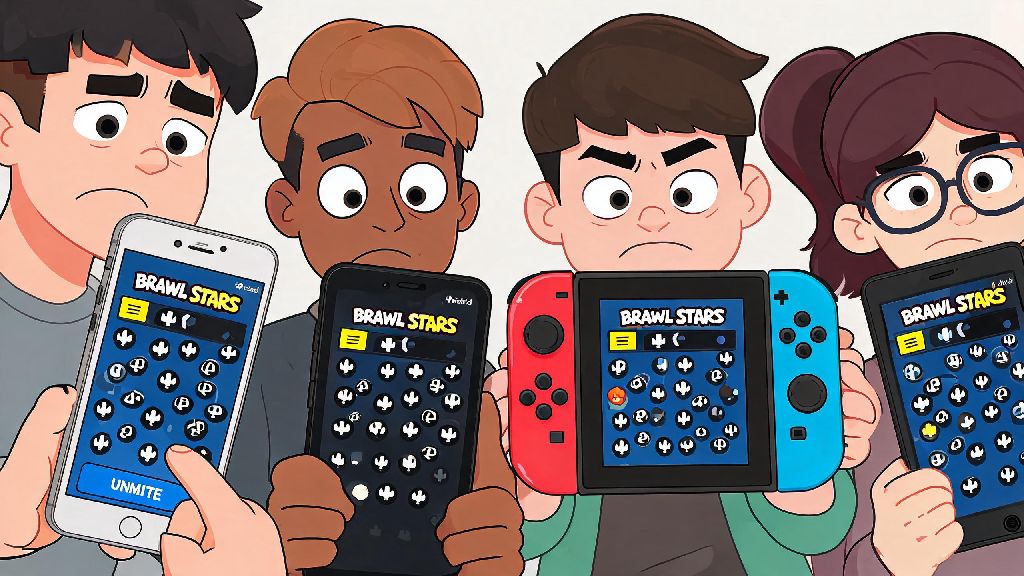
I can’t tell you how many times my club mates have complained they missed our Siege attack callouts because they accidentally muted team chat a week earlier and forgot how to turn it back on. A lot of new players mute all chat right away to avoid random toxic messages or spam, then hit a wall when they want to coordinate with friends for club wars or Power League matches. That’s where learning how to unmute chat in Brawl Stars comes in handy, whether you’re playing on iOS, Android, or Nintendo Switch. This guide walks you through every step, fixes common bugs, and helps you customize your settings so you only see the messages you care about.
How to Unmute Chat in Brawl Stars: Step-by-Step for Mobile Devices
The process for unmuting chat is almost identical on iOS and Android, so you can follow these steps no matter what phone you use. It only takes 30 seconds to adjust if you know where to look. Tap the three horizontal menu icon in the top-right corner of the main lobby screen first, then select the gear-shaped settings button from the dropdown menu. From there, Select the "Social" tab from the left-hand settings menu – this is where all chat and friend-related settings live. You’ll see a row of toggle switches for different chat types, plus a main “Mute All Chat” toggle at the top. Toggle off the "Mute All Chat" option if it’s switched on, and you’ll immediately be able to see messages from any chat channels you have enabled. If you only want to unmute specific channels instead of all chat, you can toggle individual options on or off instead of touching the main mute button.
How to Adjust Chat Settings for Specific Game Modes and Groups
You don’t have to enable every chat channel at once, and most experienced players only keep 1 or 2 channels active at any time to avoid distractions. Brawl Stars lets you customize exactly which types of messages you see, so you can tailor settings to fit how you play. For example, if you only play with club members, you can keep team and club chat on while muting everything else, so you never see random spam from global chat. These are the four core chat settings you can adjust individually:
Common Glitches That Prevent Chat from Unmuting (And How to Fix Them)
Sometimes you’ll toggle off the mute button and still can’t see messages, and that’s almost always caused by a simple fixable issue instead of a permanent bug. I’ve run into almost all of these issues myself over 4 years of playing Brawl Stars, so these fixes are tested and reliable. First, check if you have parental controls enabled on your Supercell ID. Parental control settings override in-game chat toggles, so if your parent or guardian set up content restrictions for your account, you’ll need to adjust those from your Supercell account dashboard first, not just the in-game settings. These restrictions are common for players under 16, and you’ll usually get a small pop-up notification about restricted chat if this is the case. Second, if chat stops working right after a game update, it’s almost certainly a temporary server overload. I’ve run into this bug myself a few times during big update drops, when thousands of players are logging on at once. Just close the app completely, wait 10 minutes, and log back in, it almost always fixes itself. If it doesn’t, try clearing your game cache on Android, or offloading the app on iOS – this deletes temporary junk files without touching your game progress. Never delete and reinstall the game without linking your account to Supercell ID first, or you may lose all your progress. Third, if you still can’t send or receive messages, you may have received a temporary chat ban for violating Supercell’s community guidelines. You’ll get an email to the address linked to your Supercell ID explaining the ban duration and reason, and you can submit an appeal if you believe the ban was issued by mistake.
Best Practices for Using Brawl Stars Chat After Unmuting
Chat is a tool to make the game more fun and coordinated, but it can quickly become a distraction if you don’t use it wisely. There are a few small habits you can build to get the most out of chat without dealing with unnecessary frustration. First, only share relevant information during active matches. Fast-paced modes like Brawl Ball or Gem Grab leave no time for casual conversation, so stick to short, useful callouts like “Enemy Brock at left goal” or “I have 7 gems” instead of spamming emojis or off-topic messages. If you don’t want to type mid-match, you can use the pre-set quick chat messages that are mapped to one tap, so you don’t have to take your fingers off the controls. Second, mute individual players instead of entire channels if you run into toxic people. You can tap any player’s name on the post-match score screen and select “mute” to block all messages from them, without cutting off communication from everyone else. Muting individual toxic players is far better than disabling all chat entirely, as you still get useful callouts from friendly teammates. Third, never share personal information like your address, full name, or account password in any chat channel, even private messages. Supercell support will never ask for your password, so any player claiming to be a staff member asking for login details is a scammer, and you should report and block them immediately.
At the end of the day, figuring out how to unmute chat in Brawl Stars only takes a few taps, but customizing your settings to fit your playstyle makes a huge difference in how much you enjoy the game. Whether you’re playing casual matches with friends or climbing the Power League ranks, adjusting your chat settings lets you get the most out of team coordination without dealing with unnecessary spam or toxicity. If you run into any issues we didn’t cover here, you can always reach out to Supercell support for more tailored help.